Why is my video file so big? The 4 settings that decide it
A one-minute phone clip can be 60 MB or 400 MB. Four settings decide which — bitrate, resolution, frame rate and codec — and most people change the wrong one first. Here is what each actually does, the order to adjust them in, and how to work out the numbers when you have a hard size limit.
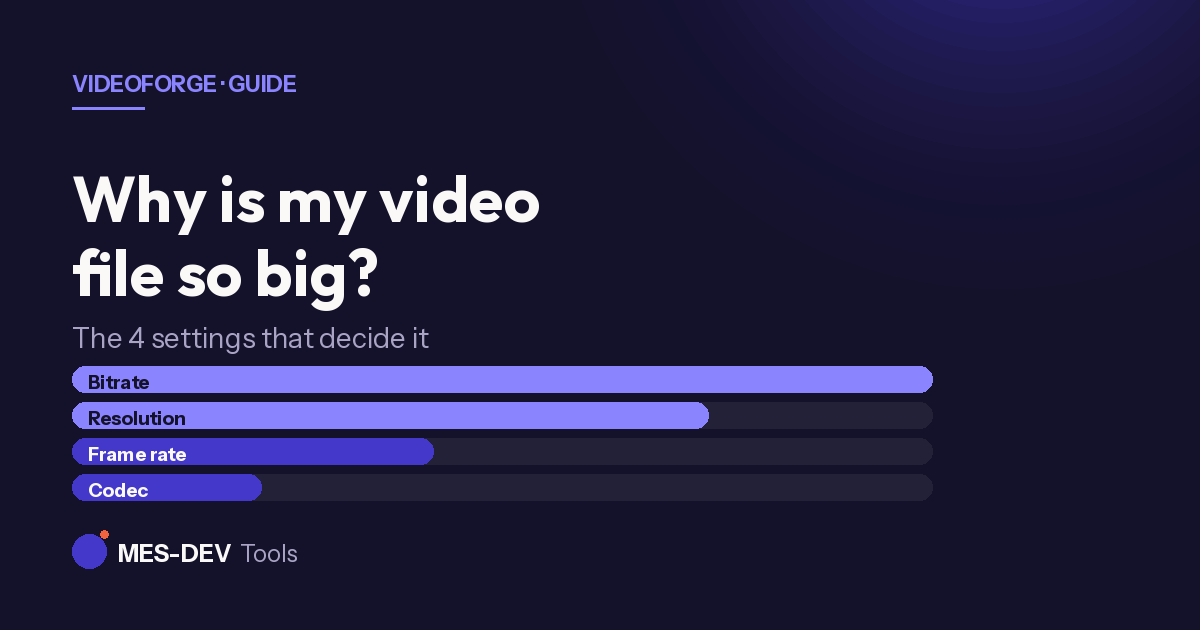
A one-minute clip from a phone can be 60 MB or 400 MB. Same phone, same minute, same scene. The difference is settings, and there are only four that matter.
Most people, when the file is too big, reach for a quality slider and hope. It is worth knowing what sits underneath it, because one of these four does far more work than the other three — and it is usually not the one being adjusted.
1. Bitrate — the one that matters most
Bitrate is how many bits per second are spent describing the picture. Everything else on this list is, in the end, a way of changing how many bits the picture needs.
It is close to a direct multiplier. Halve the bitrate, roughly halve the file. A 10 Mbps clip is about twice the size of the same clip at 5 Mbps.
Two videos can sit at the same bitrate and look very different, though, because bitrate is a budget and the other three settings decide how far that budget has to stretch.
Rough guidance for H.264:
| Resolution | Comfortable | Tight but usable |
|---|---|---|
| 720p 30fps | 4 Mbps | 2 Mbps |
| 1080p 30fps | 8 Mbps | 4 Mbps |
| 1080p 60fps | 12 Mbps | 6 Mbps |
| 4K 30fps | 35 Mbps | 18 Mbps |
Below "tight but usable" you start seeing blocking in motion and smearing in dark areas.
2. Resolution — the one to change first
Resolution is the pixel count per frame, and it scales as an area, not a length. This is the part that surprises people.
1080p is not half of 4K. It is a quarter of it — roughly 2 million pixels against 8 million. Dropping from 4K to 1080p removes three quarters of the pixels, which means the same bitrate budget now has four times as much to spend on each one.
That is why resolution, not bitrate, is the first thing to touch. Lowering the bitrate makes an existing picture worse. Lowering the resolution makes a smaller picture that can be described well at a much lower bitrate. If the video is going to be watched on a phone, in a chat app, or in a small embedded player, the 4K is being thrown away regardless.
3. Frame rate — cheap to halve, easy to regret
Frame rate is how many frames per second. Going from 60 to 30 halves the number of frames, and the file shrinks substantially — though not exactly by half, because consecutive frames are compressed against each other and similar frames are cheap.
Halve it when the footage is talking heads, screen recordings, tutorials or interviews. Keep it when the footage is sport, action, gaming, or anything where smooth motion is the point. Below 24fps starts to read as stuttering to most viewers.
4. Codec — real savings, real compatibility cost
The codec is the compression method itself.
H.264 is the safe default. Effectively every phone, browser, TV and messaging app made in the last fifteen years plays it.
H.265 (HEVC) gives roughly the same visual quality at meaningfully less data — commonly quoted around 30–50% smaller, depending heavily on the content. The cost is compatibility: older devices, some browsers and several messaging apps will either refuse it or silently re-encode it.
AV1 compresses better still and browser support keeps improving, but hardware decoding is younger and encoding is slow.
The rule of thumb: if you control where the file will be played, H.265 is a large free win. If you are sending it to somebody and you do not know what they will open it on, stay on H.264.
The order to work in
- Resolution first. Match it to where the video will actually be watched.
- Frame rate second, if the content is not motion-heavy.
- Bitrate third, to hit your number.
- Codec last, and only if you know the playback device.
Starting from the last one is the common mistake, and it is the one that produces a file that is smaller but will not play on the recipient's phone.
Working out the numbers for a hard limit
When there is a real ceiling — a 25 MB email limit, a 100 MB upload form — do the arithmetic instead of guessing:
target size in MB × 8 = megabits available
megabits available ÷ length in seconds = total bitrate in Mbps
total bitrate − 0.128 (audio) = video bitrate
A 25 MB limit on a 90-second clip gives 200 megabits, or about 2.2 Mbps total, so roughly 2.1 Mbps for video. Against the table above that is thin for 1080p and comfortable for 720p — so the answer is to output 720p, not to force 1080p through a budget that cannot carry it.
If you would rather not do this by hand, a compressor with a target-size mode does the same sum for you and shows a live estimate before it starts. There is a walkthrough of that here: how to compress a video without losing quality.
Doing it
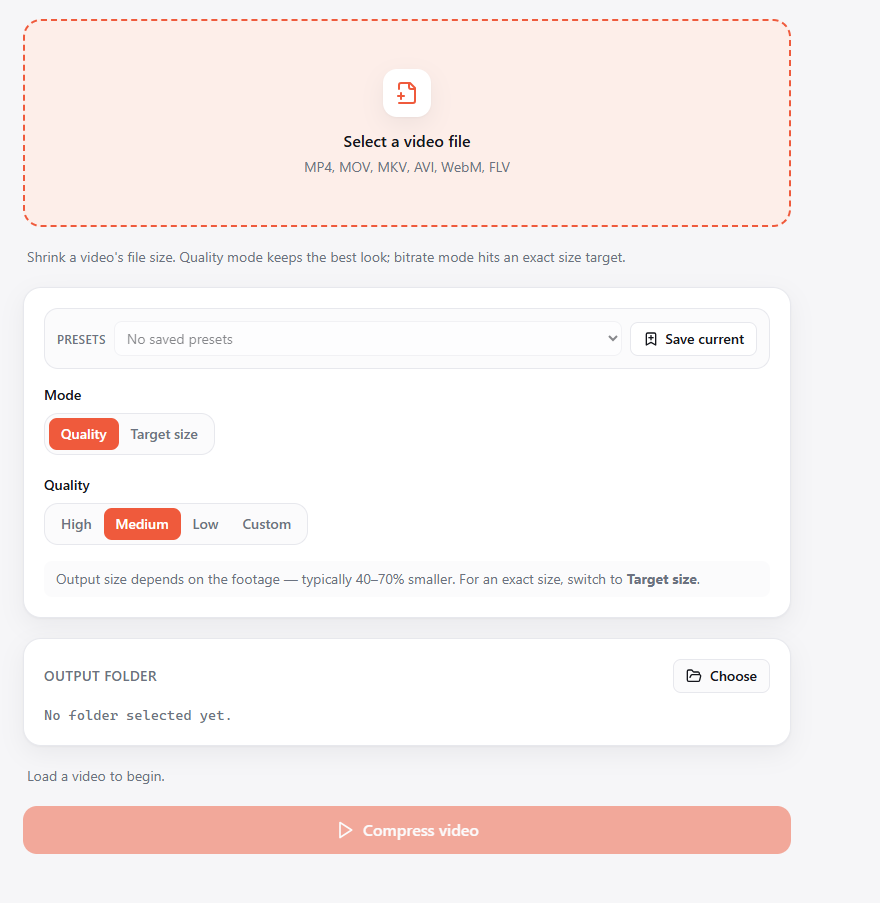
VideoForge is a free offline video toolkit for Windows that exposes all four of these directly, rather than behind a single unexplained quality slider. It runs on your own machine, so there is no upload step and no file-size ceiling.
Compression, conversion, trimming and cropping have no length limit on the free version when you leave the encoder on the default H.264 setting. H.265, AV1 and GPU encoding are available and free up to 60 seconds of output, with a one-time purchase removing that limit. There is no watermark on the output at either tier.
Related reading: a free alternative to online video converters.