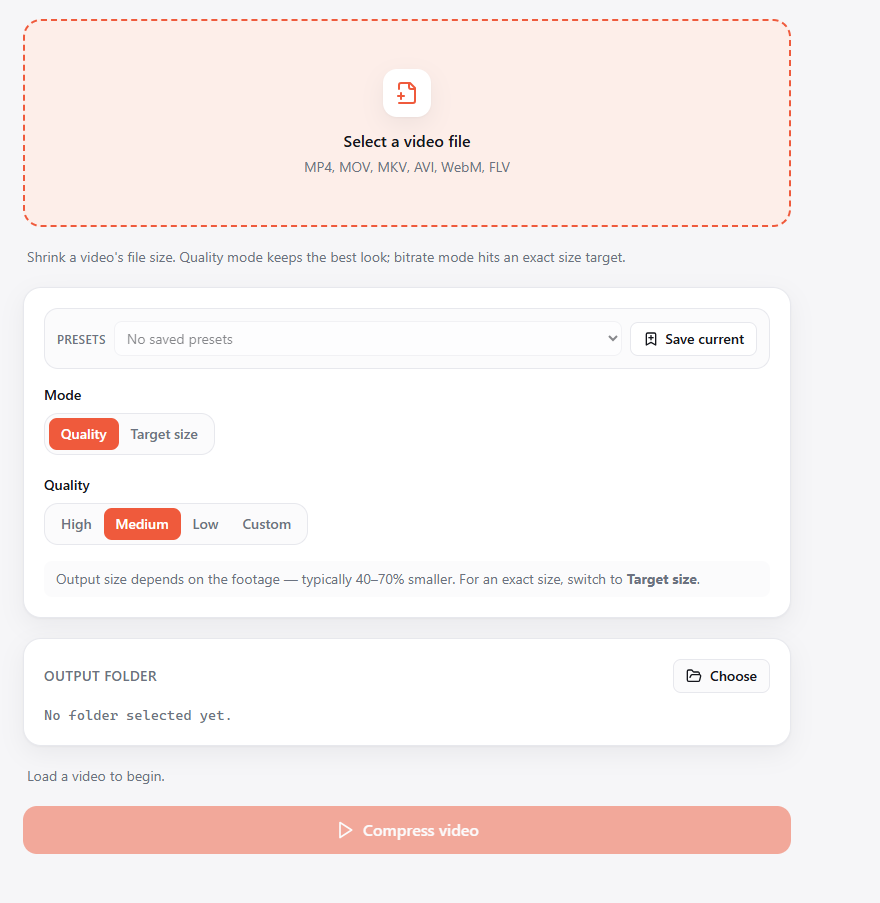
Compress a Video for WhatsApp Without Visible Quality Loss
WhatsApp squeezes your videos and they arrive blurry. Two ways to keep them sharp, and when to use each.
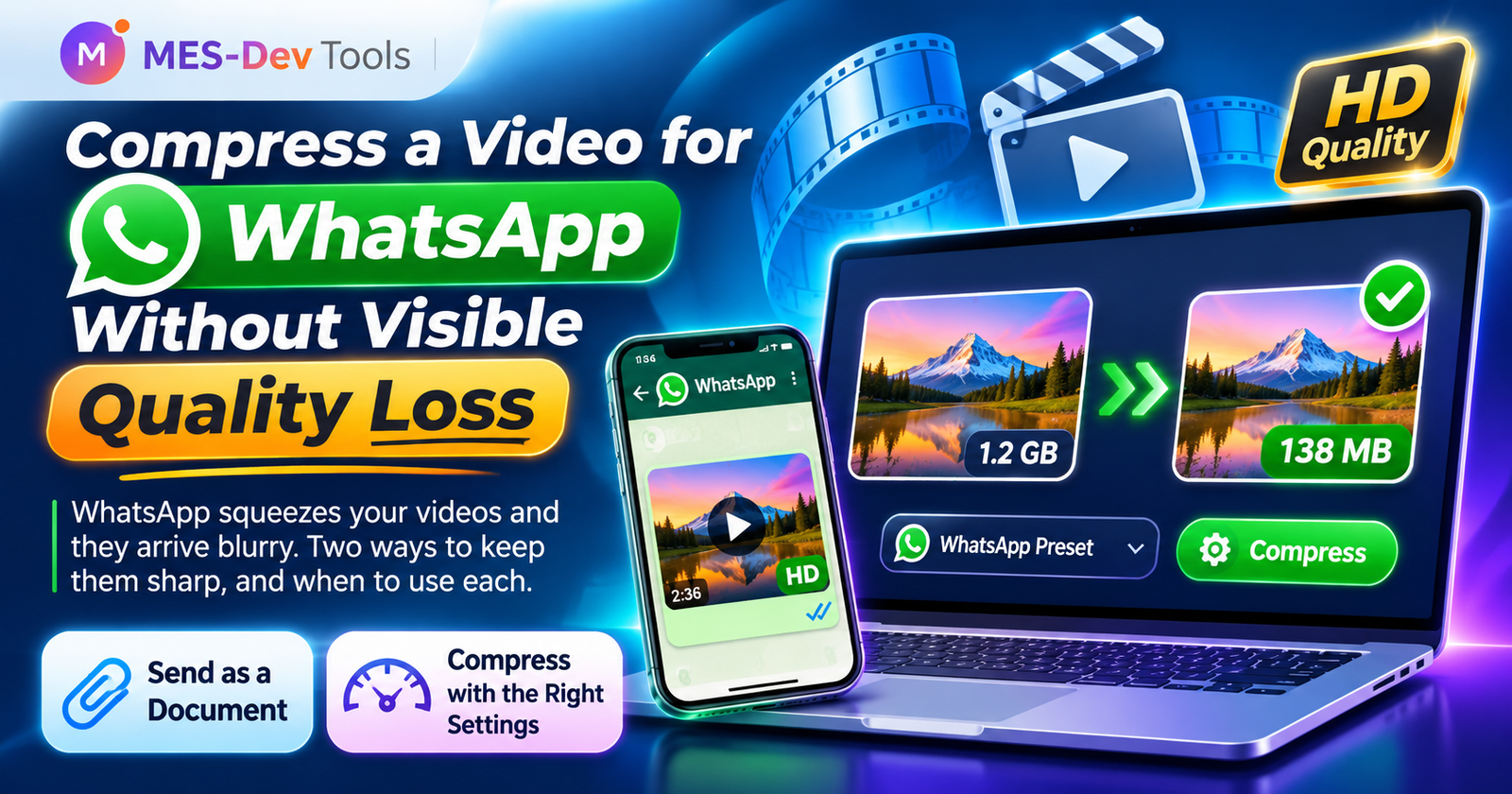
You send a nice video on WhatsApp, and it arrives blurry. The reason is simple: WhatsApp squeezes videos to save data. The good news is that you can choose how the video is squeezed, instead of letting WhatsApp decide. Here are two ways, and when to use each.
Why WhatsApp makes your video look worse
When you send a video as a normal video, WhatsApp compresses it again before sending. This is fast and saves data, but the picture loses detail. The longer the video and the higher its resolution, the more you notice it.
Option 1: Send it as a Document (original quality)
WhatsApp does not re-compress files sent as documents. The other person gets the video exactly as you filmed it.
- Open the chat in WhatsApp.
- Tap the paperclip (attach) icon.
- Choose Document, not Gallery or Camera.
- Pick your video and send it.
WhatsApp allows documents up to 2 GB. The downside: the file stays big, so the other person needs more data and more time to download it.
Option 2: Compress it yourself first (best balance)
If you compress the video yourself, you pick the size and the quality. The result is a smaller file that still looks good. You can then send it normally.
Here is how to do it on Windows with VideoForge. It works on your own PC, so your video is never uploaded anywhere.
- Install VideoForge. It is free. The video engine (about 168 MB) downloads once on first launch, then everything works offline.
- Open VideoForge and add your video.
- Choose the WhatsApp export preset. It already knows a good size, frame rate and bitrate for WhatsApp.
- Check the size estimate, then start the export.
- Send the new file from WhatsApp as usual.
Compress, convert and the export presets are unlimited and free in VideoForge.
Quick tips for smaller files that still look good
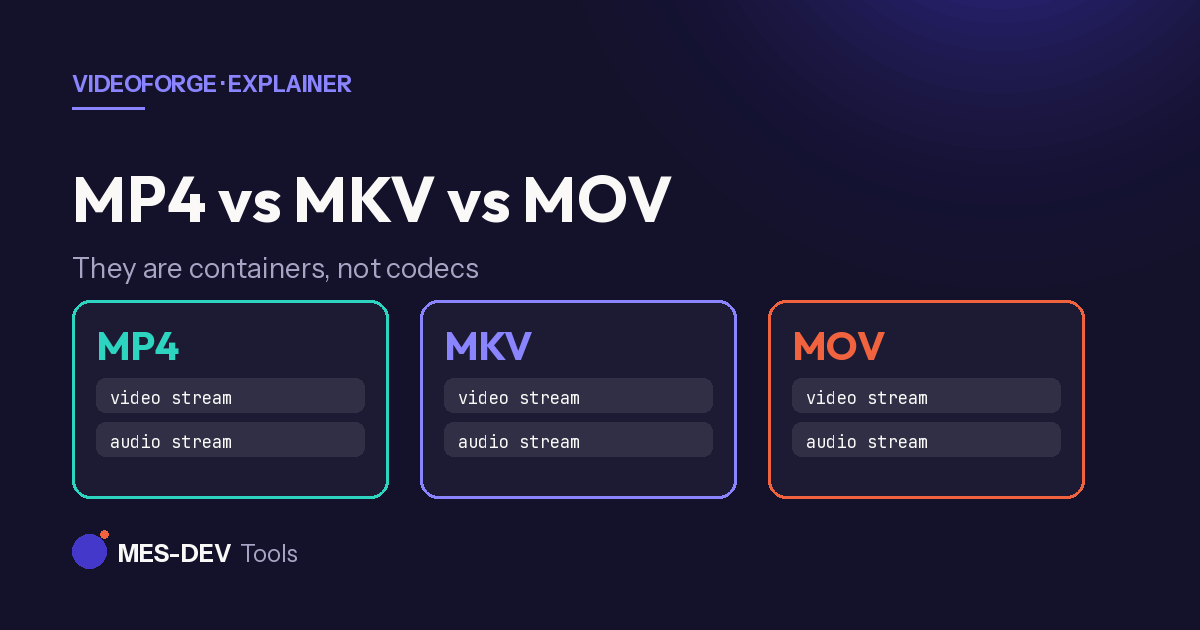
- Use MP4. It is the format that works best on phones.
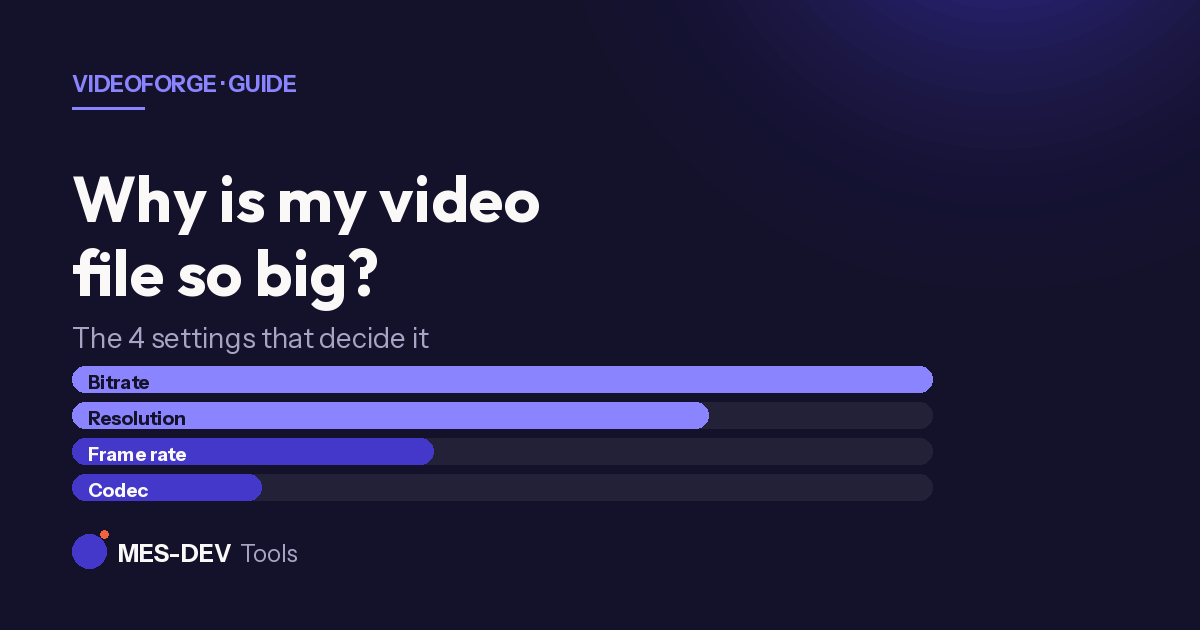
- 720p is enough for a phone screen. You rarely need 4K for a chat.
- Cut what you do not need. A shorter video is always smaller.
- Do not compress twice. Compress once from your original file, not from an already compressed copy.
Which option should you choose?
| Your situation | Best choice |
|---|---|
| Short clip, just for fun | Send it normally |
| Long video, quality matters | Send it as a Document |
| Big video for many people, or slow internet | Compress it first, then send |
| Video for work or school | Compress it first, then send |
Keep your videos private
Many online compressors ask you to upload your video to a website. With VideoForge, the work happens on your own computer, so your video never leaves it.