MP4 vs MKV vs MOV: which video format should you use?
MP4, MKV and MOV are containers, not codecs — which is why converting between them is often near-instant and why "MKV is better quality" is a myth. Here is what each one is actually for, and how to pick without guessing.
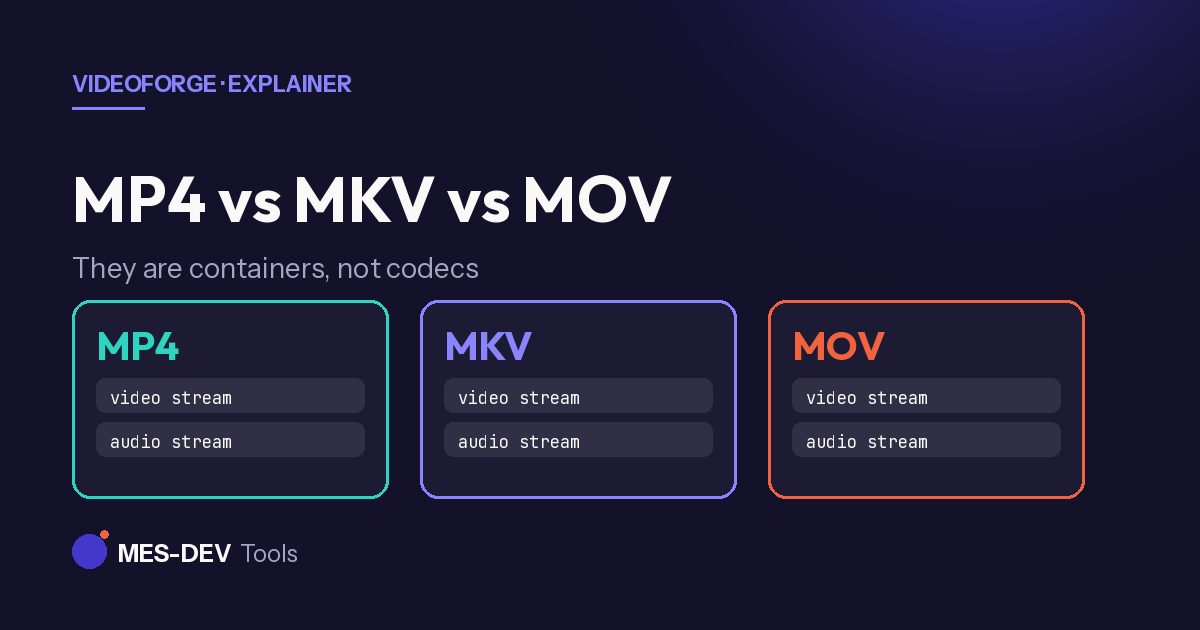
If you have ever downloaded a video and found your player refusing to open it, or wondered whether MKV really looks better than MP4, the confusion usually comes from one thing: these are not compression formats. They are containers.
A container is a box, not a compression method
A video file has at least three things inside it: a video stream, an audio stream, and metadata like chapters, subtitles and language tracks. The container is the box that holds them and describes how they fit together.
The compression is done by the codec — H.264, H.265, AV1 for video; AAC, MP3, Opus, FLAC for audio. The codec decides how the picture looks and how big the file is. The container decides what can be packed alongside it and which players will open it.
This is why "MKV is higher quality than MP4" is not true. Put the same H.264 video stream in both and the picture is pixel-for-pixel identical. What differs is what else the box can carry.
It is also why converting between containers is often near-instant. If the streams inside are already compatible with the destination box, they can be copied across without being re-encoded — no quality loss, and no waiting for a full re-compression.
MP4 — the one that plays everywhere
MP4 is the default for a reason. Every phone, browser, smart TV, games console and messaging app made in the last fifteen years opens it.
Use it for: anything you are sending to someone else, uploading to a platform, or playing on a device you do not control.
The trade-off: it is the most limited of the three. One video track, one or two audio tracks, and subtitle support that is patchy across players. If your file has three audio languages and two subtitle tracks, MP4 will make you throw most of that away.
MKV — the one that holds everything
Matroska was designed to carry whatever you want: unlimited audio tracks, unlimited subtitle tracks, chapters, cover art, and effectively any codec including ones MP4 was never designed for.
Use it for: archiving, anything with multiple audio languages or subtitle tracks, and anything you will only ever play on your own computer with VLC or a media server.
The trade-off: compatibility. Many smart TVs, most browsers and most phones will not open MKV without extra software. It is the best box and the worst passport.
MOV — the editing one
MOV is Apple's container, and it is the native format for QuickTime and Final Cut. It also carries ProRes, the intermediate codec editors use for grading and cutting.
Use it for: footage going into an edit, especially in an Apple-heavy workflow, or anything that came off an iPhone and is staying in the edit suite.
The trade-off: outside editing, it buys you nothing over MP4, and support on Windows and Android is more variable.
At a glance
| MP4 | MKV | MOV | |
|---|---|---|---|
| Plays on almost anything | Yes | No | Partly |
| Multiple audio tracks | Limited | Unlimited | Limited |
| Subtitle tracks | Patchy | Excellent | Limited |
| Chapters | Limited | Yes | Yes |
| Good for sending to people | Yes | No | No |
| Good for archiving | No | Yes | No |
| Good for editing | Adequate | No | Yes |
Which to pick, in one line each
- Sending it to someone, or uploading it anywhere → MP4, H.264, AAC audio. This combination has the fewest ways to fail.
- Keeping it for yourself with all its tracks intact → MKV.
- Feeding it into an edit → MOV, and consider ProRes rather than H.264 if you will be grading it.
- Not sure → MP4. The compatibility is worth more than the features you are giving up.
Converting between them without losing quality
Because the container and the codec are separate, changing the box does not have to touch the picture. A remux — copying the streams into a different container — is lossless and typically finishes in seconds regardless of file size.
A full re-encode is only needed when the destination container cannot hold the codec you have, or when you are changing the codec deliberately.
VideoForge converts between MP4, MKV, MOV, AVI, WebM and FLV on your own Windows PC. It downloads its processing engine once on first run — about 80 MB — and then works with no internet connection at all, which means no upload step and no file-size cap. Conversion is free with no length limit and no file count limit on the default H.264 setting, and nothing is watermarked at any tier.
Related reading: why is my video file so big? and a free alternative to online video converters.