'python' is not recognized — how to fix it on Windows
The error means Windows cannot find the Python executable, not that Python is missing. Nine times out of ten it is one unticked box during install. Here is how to confirm what you have and fix it in the right order.
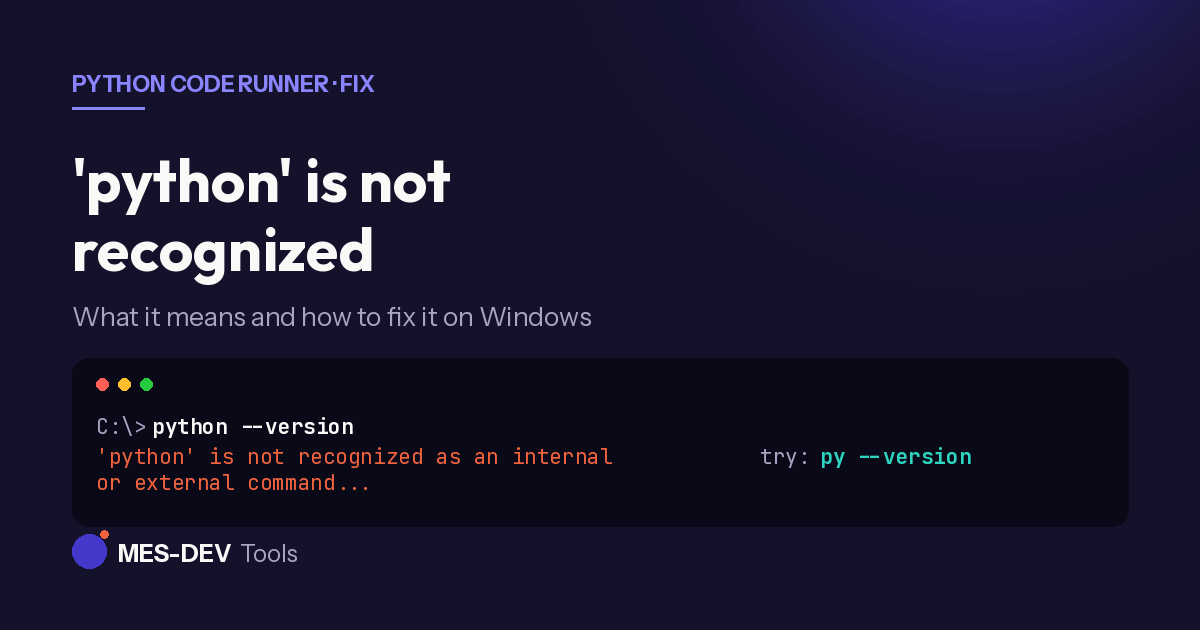
'python' is not recognized as an internal or external command,
operable program or batch file.
This does not mean Python is missing. It means the Command Prompt does not know where to find it. Those are different problems with different fixes, and it is worth spending thirty seconds working out which one you have before changing anything.
First, try this
Open Command Prompt and type:
py --version
If that prints a version number, Python is installed and working. Windows ships a launcher called py that finds your Python installations without needing PATH configured at all. You can use py in place of python for everything:
py myscript.py
py -m pip install requests
py -3.12 myscript.py
If py also fails, Python is genuinely not installed, or not installed for your user account. Skip to the last section.
Why this happens
When you run python, Windows searches a list of folders called PATH. If the folder containing python.exe is not on that list, the search fails and you get the error — even though the file is sitting on your disk.
The Python installer has a checkbox on its very first screen reading Add python.exe to PATH. It is unticked by default. Almost everyone who hits this error missed it.
Fix 1 — re-run the installer (easiest)
If you still have the installer, or download it again from python.org:
- Run it and choose Modify if it offers that, or run a fresh install.
- On the first screen, tick Add python.exe to PATH before clicking anything else.
- Finish, then close every Command Prompt window and open a new one.
That last step matters and catches a lot of people. A Command Prompt reads PATH when it opens and never re-reads it. Your fix will not appear in a window that was already open.
Fix 2 — add it to PATH by hand
If you would rather not touch the installer, first find where Python actually is. In Command Prompt:
where py
py -c "import sys; print(sys.executable)"
The second command prints the full path to python.exe. Copy everything up to but not including \python.exe — that is the folder you need. It usually looks like:
C:\Users\<you>\AppData\Local\Programs\Python\Python312
Then:
- Press Win, type
environment, open Edit the system environment variables. - Click Environment Variables.
- Under User variables, select Path, click Edit.
- Click New and paste the folder path.
- Click New again and add the same path with
\Scriptson the end — this is what makespipwork as a command. - OK out of all three dialogs, then open a fresh Command Prompt.
Verify with python --version.
The Microsoft Store trap
If typing python opens the Microsoft Store instead of throwing an error, that is a different problem. Windows ships stub files called App Execution Aliases that intercept the command and offer to install Python from the Store.
To turn them off: Settings → Apps → Advanced app settings → App execution aliases, then switch off both python.exe and python3.exe.
Leave them on and they can shadow a real Python installation, which produces a confusing state where Python is installed, on PATH, and still not running.
PowerShell is not Command Prompt
If it works in one and not the other, PATH is fine and something else is going on — most often the execution alias above, or PowerShell's own alias handling. Test both with py --version, which bypasses the whole question.
Nothing works and py fails too
Then Python is not installed for your account. Download it from python.org, tick Add python.exe to PATH on the first screen, and install for your user rather than for all users unless you have a reason to do otherwise — a per-user install avoids needing admin rights and avoids permission problems with pip later.
If you just want to run some Python
Worth saying: all of the above exists because Python on Windows is a system-level install with system-level configuration. If your goal is to write and run a script rather than to administer a Python environment, that is a lot of setup for the job.
Python Code Runner lets you write, run and debug Python on Windows without setting up a terminal, a PATH variable or a cloud notebook. It runs offline, so nothing is uploaded and it works with no connection.
Related reading: run Python without installing it and an offline Python editor for Windows.