How to remove a background from an image (free, on Windows)
Remove the background from any image for free on Windows — fully offline, with nothing uploaded. A step-by-step guide using CutOut, plus tips for clean edges on hair and fur.
Removing the background from a photo usually means one of two things: paying for a subscription tool, or uploading your image to a website and hoping it deletes it afterwards. Neither is great if you just want a clean cut-out — and especially not if the photo is a product shot, a client's file, or anything you'd rather not hand to a server you don't control.
There's a simpler way on Windows. CutOut is a free desktop app that removes image backgrounds using an on-device AI model, so the whole thing happens on your own computer — nothing is uploaded. This guide walks through it step by step, then covers how to get cleaner edges on tricky subjects like hair and fur.
What you'll need
- A Windows PC
- The free CutOut app (download it here)
- An image in JPG, PNG or WebP
That's it. You can remove backgrounds and export the result for free — no account, no subscription, no internet connection required once the app is installed.
Step 1 — Open CutOut
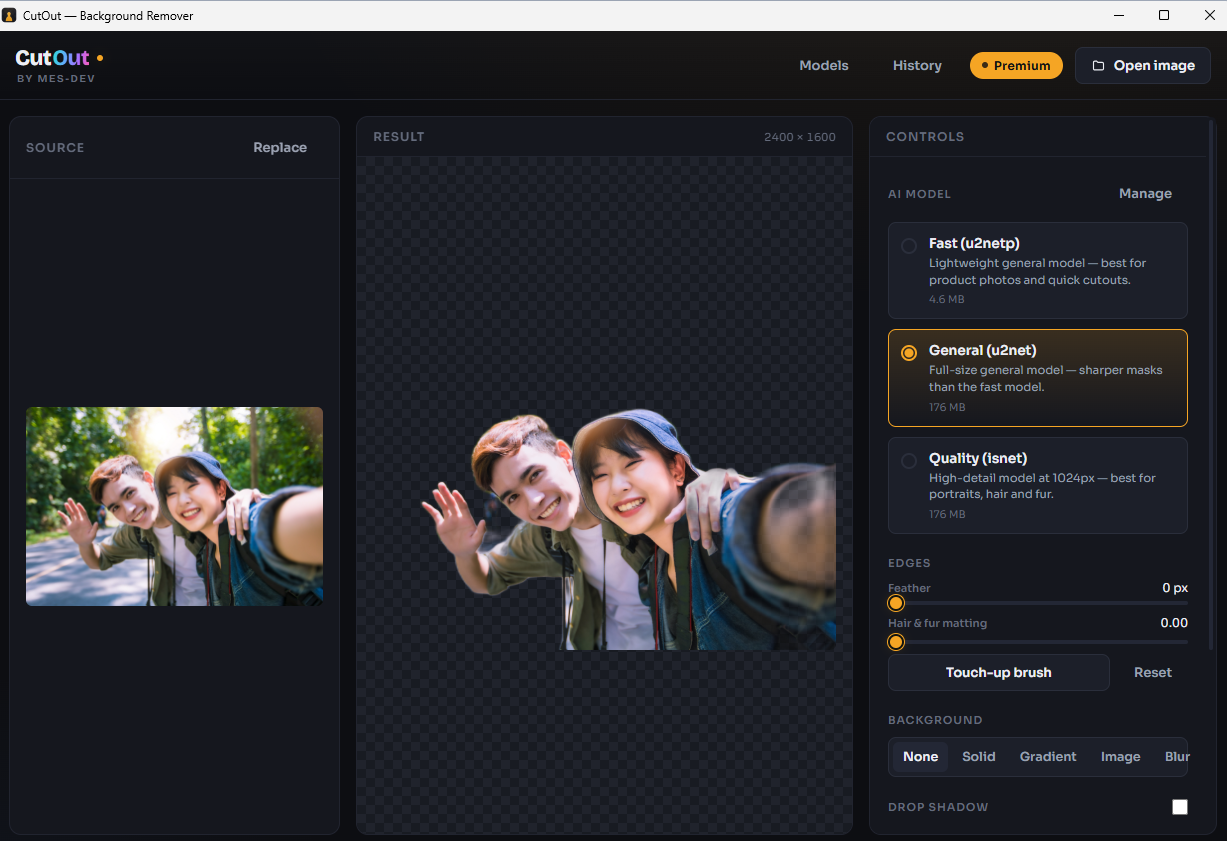
Install and launch the app. You'll see three panels: Source (your original), Result (the cut-out), and Controls on the right, where you pick the AI model and fine-tune the edges.
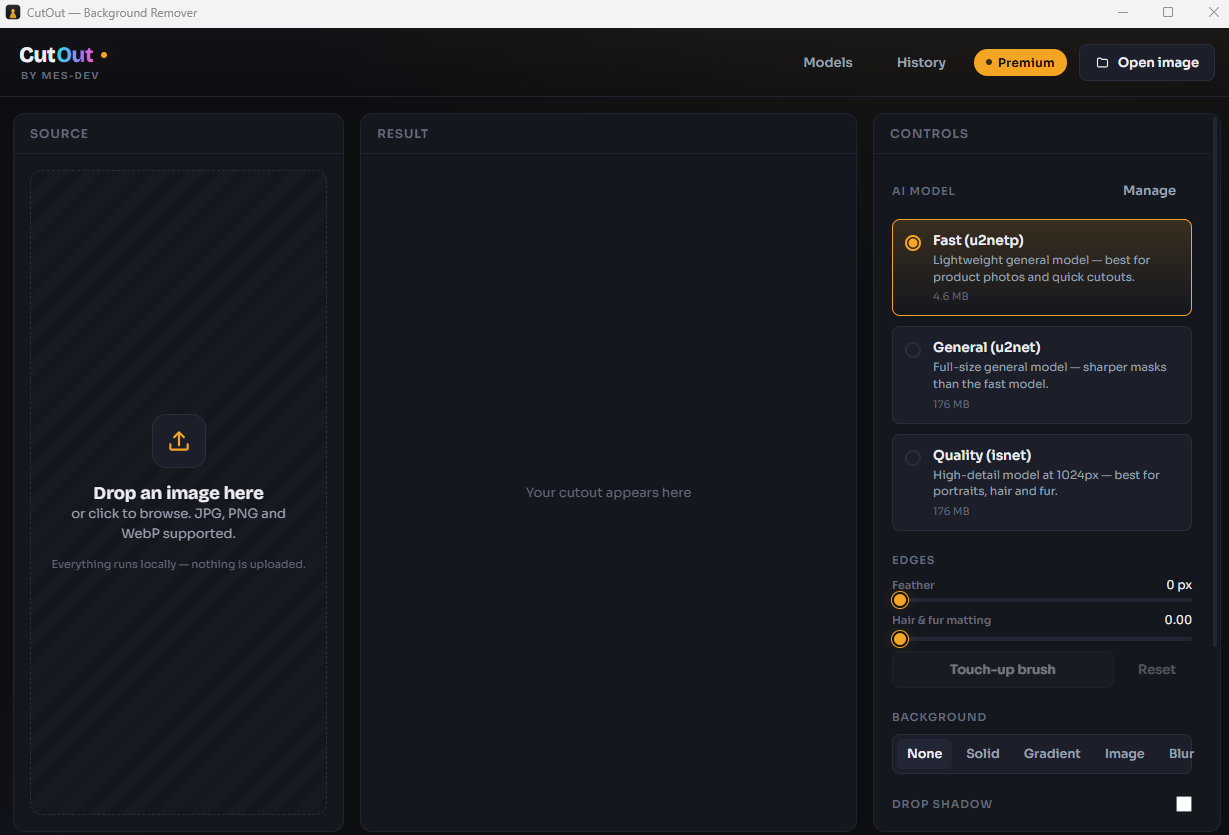
Notice the line under the drop zone: "Everything runs locally — nothing is uploaded." That's the whole point — your image never leaves your machine.
Step 2 — Load your image
Drag an image straight onto the Source panel, or click Open image to browse for it. CutOut accepts JPG, PNG and WebP.
Step 3 — Pick an AI model
In the Controls panel under AI MODEL, choose how the cut-out is calculated. The free model handles the vast majority of everyday jobs:
- Fast (u2netp) — free. A lightweight, general-purpose model that's ideal for product photos and quick cut-outs with clean, defined edges.
If you need more precision, two higher-detail models are available with Premium (more on those below).
Step 4 — Remove the background
CutOut processes the image and the Result panel fills in with your subject on a transparent (checkerboard) background — at the original full resolution.
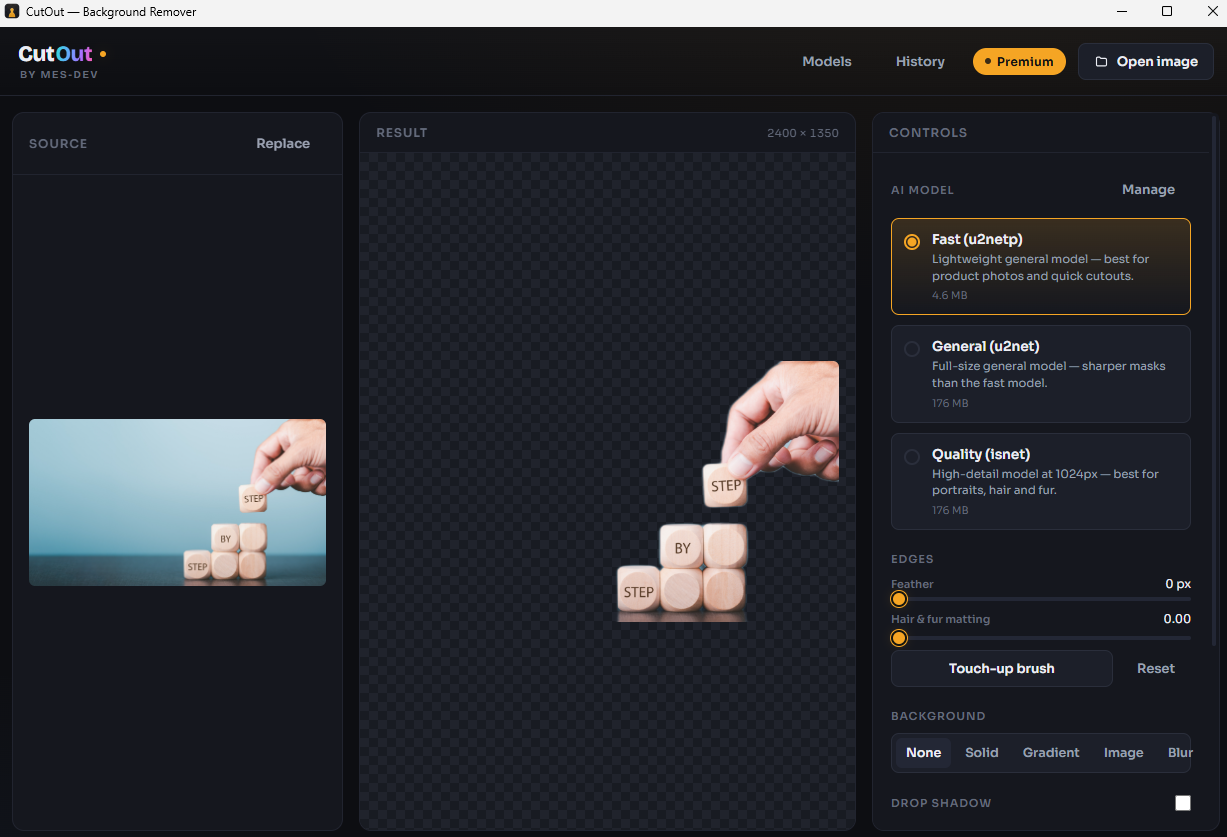
For clean-edged subjects like products, packaging or text, the free Fast model usually nails it on the first pass.
Step 5 — Refine the edges
Under EDGES you've got a few controls to tidy up the result:
- Feather — softens the cut-out edge by a pixel or two so it blends naturally.
- Hair & fur matting — recovers fine strands the initial mask misses.
- Touch-up brush — manually paint areas back in or erase leftovers the model got wrong.
- Reset — start the edits over.
A little feathering goes a long way on photos; leave it at zero for crisp graphics and logos.
Step 6 — Replace the background (optional)
If you don't want a transparent PNG, the BACKGROUND options let you drop your subject onto something new without leaving the app:
- None — keep it transparent
- Solid — a flat colour (great for store listings and ID photos)
- Gradient — a smooth colour blend
- Image — composite onto another picture
- Blur — keep the original background but blur it
There's also a Drop shadow toggle to make the subject sit more naturally on its new background.
Step 7 — Export
Save your result as PNG (keeps transparency) or JPG — both free. PNG is the right choice whenever you want a transparent background; JPG is fine once you've placed the subject on a solid colour or new image.
That's the full free workflow: load, cut out, refine, export — entirely offline.
Getting cleaner edges on hair, fur and portraits
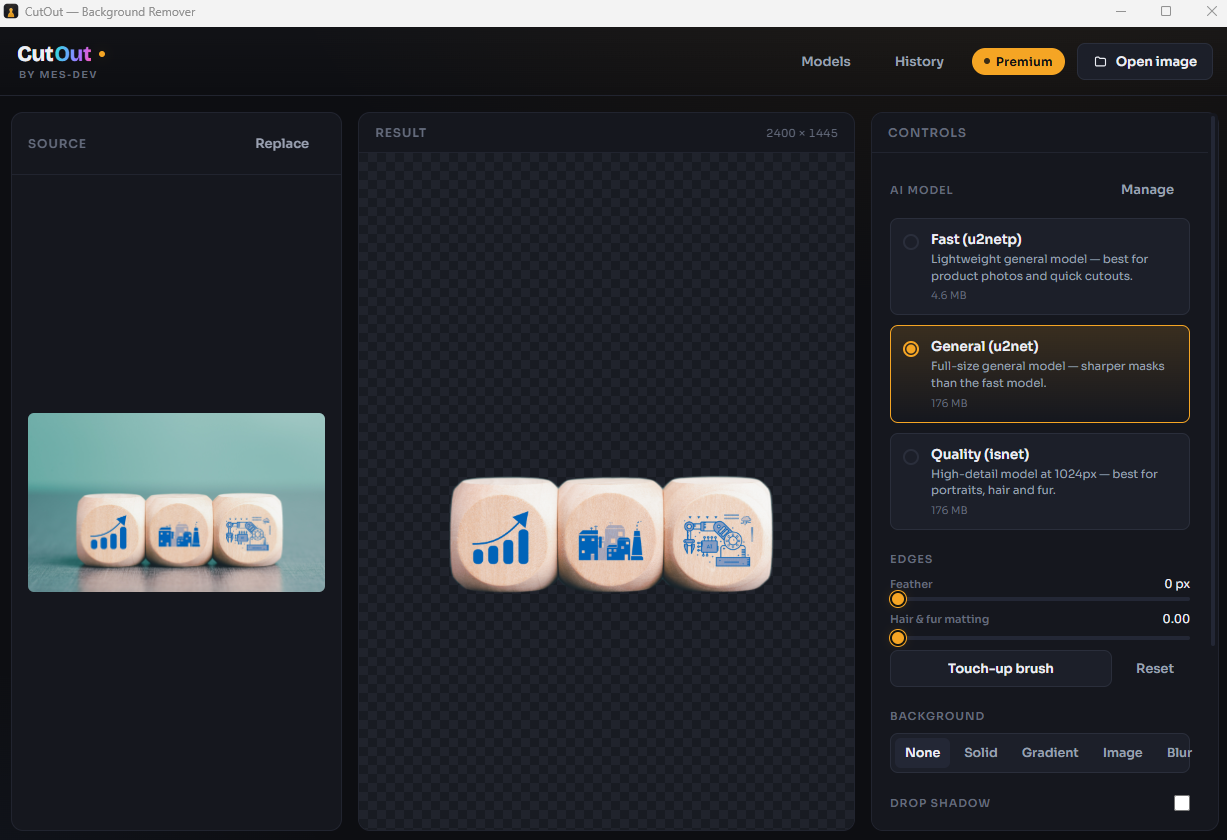
The free Fast model is built for speed and clean-edged subjects. Photos of people and animals are harder — wispy hair and soft fur are where simple masks tend to fail. For those, CutOut includes two higher-detail models as Premium options:
- General (u2net) — sharper, more accurate masks than the Fast model across general subjects.
- Quality (isnet) — a high-detail model that works at 1024px and is the best choice for portraits, hair and fur.

You can switch models from the Manage screen and compare results before committing to one.
Removing backgrounds from lots of images at once
Editing photos one at a time is fine for a one-off, but tedious for a whole product catalogue. CutOut's batch processing (a Premium feature) lets you run the same cut-out across many images in one go — drop in a folder of product shots and get a set of transparent PNGs back without repeating the steps for each file.
Why do it offline?
Browser-based background removers send your image to a remote server to process it. For a casual photo that may be fine, but for product photography, client work, or anything sensitive, "upload and trust" isn't ideal. Because CutOut runs the AI model directly on your PC:
- Your images never leave your computer
- It keeps working with no internet connection
- There's no per-image limit, queue or watermark
Free vs Premium at a glance
| Free | Premium (one-time purchase) | |
|---|---|---|
| Background removal | ✓ | ✓ |
| Fast (u2netp) model | ✓ | ✓ |
| Export PNG / JPG | ✓ | ✓ |
| General + Quality models (hair, fur, portraits) | — | ✓ |
| Batch processing | — | ✓ |
| TIFF / WebP export | — | ✓ |
CutOut is free to download and use for everyday background removal. Premium is a one-time purchase — no subscription — for when you need the extra detail, formats or volume.
Ready to try it?
You can remove your first background in under a minute, completely free and fully offline.