How to Check if Python Is Installed on Windows (3 Ways)
Not sure if Python is on your PC? Check in 10 seconds, then fix the most common errors.
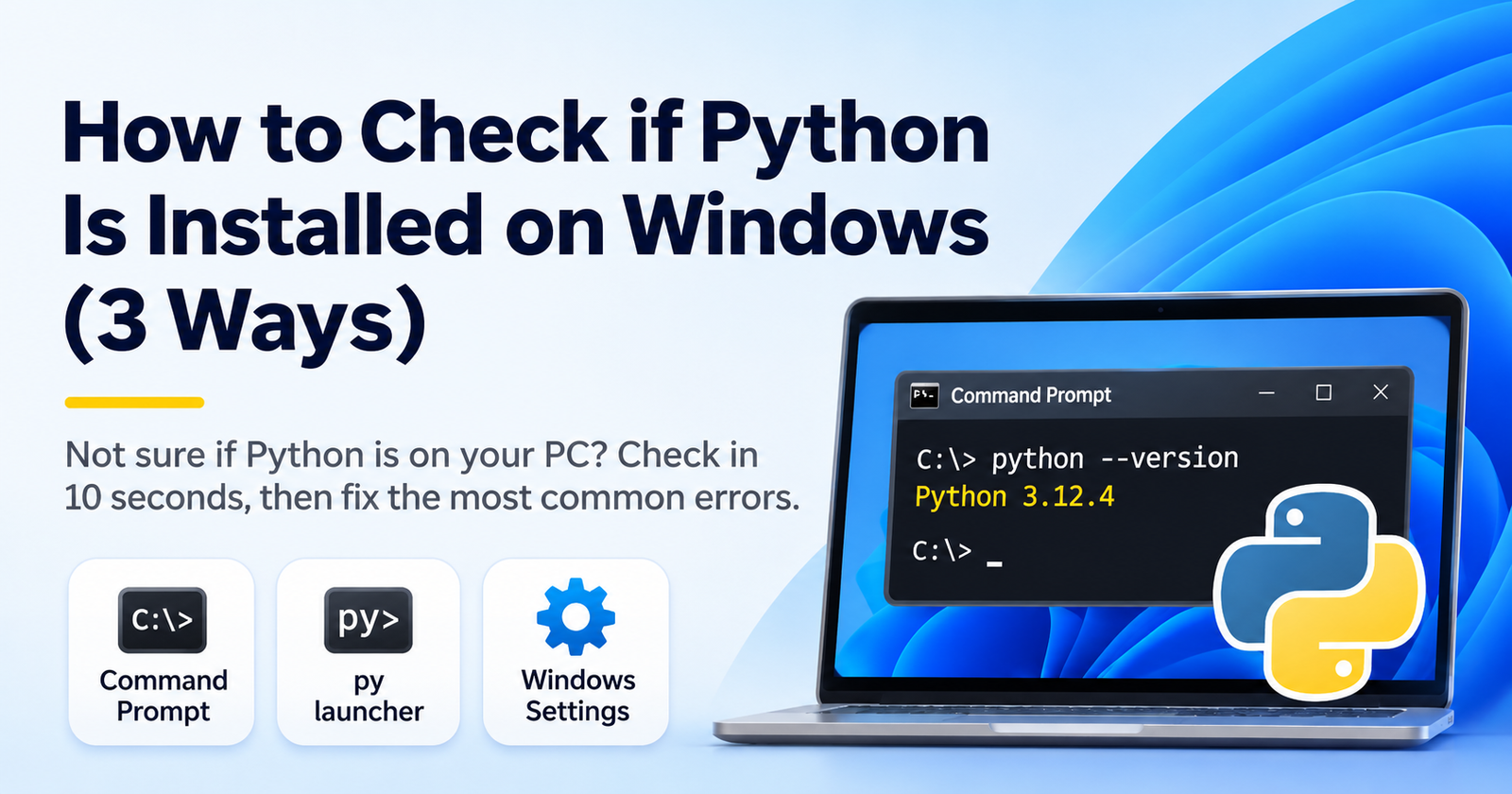
Not sure if Python is installed on your Windows PC? You can find out in about 10 seconds. Here are three easy ways, from fastest to slowest.
Way 1: Use Command Prompt
- Press the Windows key, type
cmd, and press Enter. - Type
python --versionand press Enter. - If you see something like
Python 3.12.4, Python is installed. The number is your version.
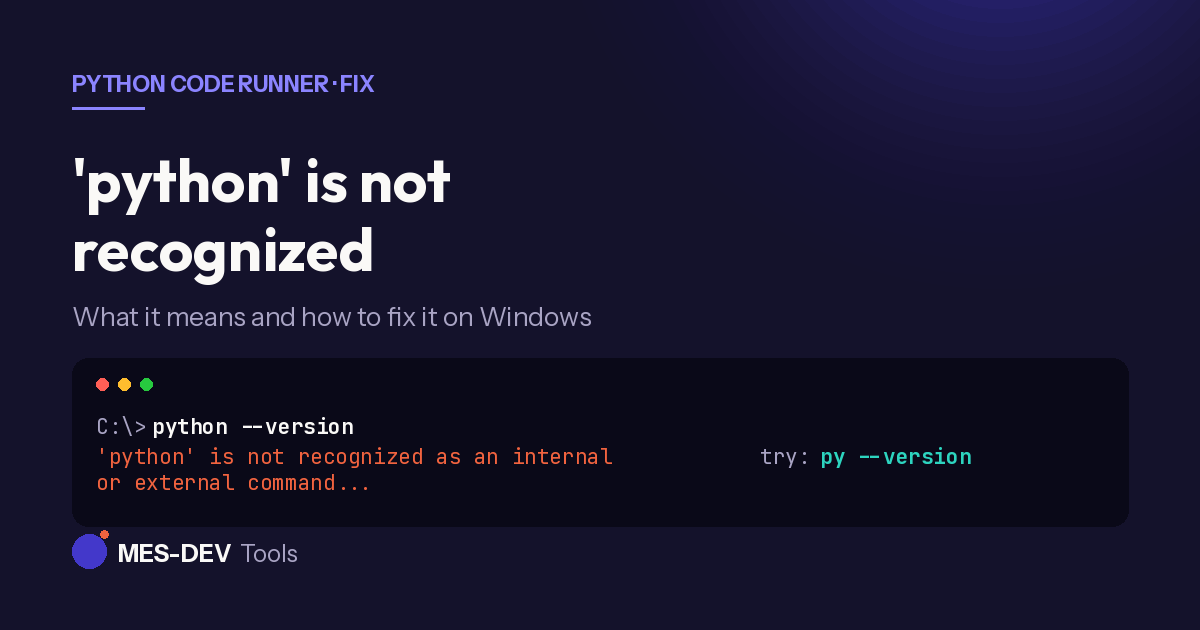
If you see 'python' is not recognized, Python may still be installed, but Windows cannot find it. Read our guide: fix 'python' is not recognized on Windows.
Way 2: Use the py launcher
Many Python installs include a small tool called py.
- In Command Prompt, type
py --versionand press Enter. - To see every Python version on your PC, type
py -0.
Way 3: Look in Windows Settings
- Open Settings, then Apps, then Installed apps.
- Type
Pythonin the search box. - If you see "Python 3.x", it is installed.
Which Python is Windows using?
If you have more than one Python, type where python in Command Prompt. Windows shows the full path of each one. The first path in the list is the one that runs.
Do you really need to install Python?
If you only want to run a script or learn the basics, you may not need a full Python setup. Python Code Runner is a free offline Python editor for Windows. It can run Python scripts without installing Python separately. You can read how it works here: run Python without installing it.
Quick summary
| Command | What it tells you |
|---|---|
python --version |
Your Python version |
py --version |
Your version through the py launcher |
py -0 |
All Python versions on this PC |
where python |
Where Python is installed |
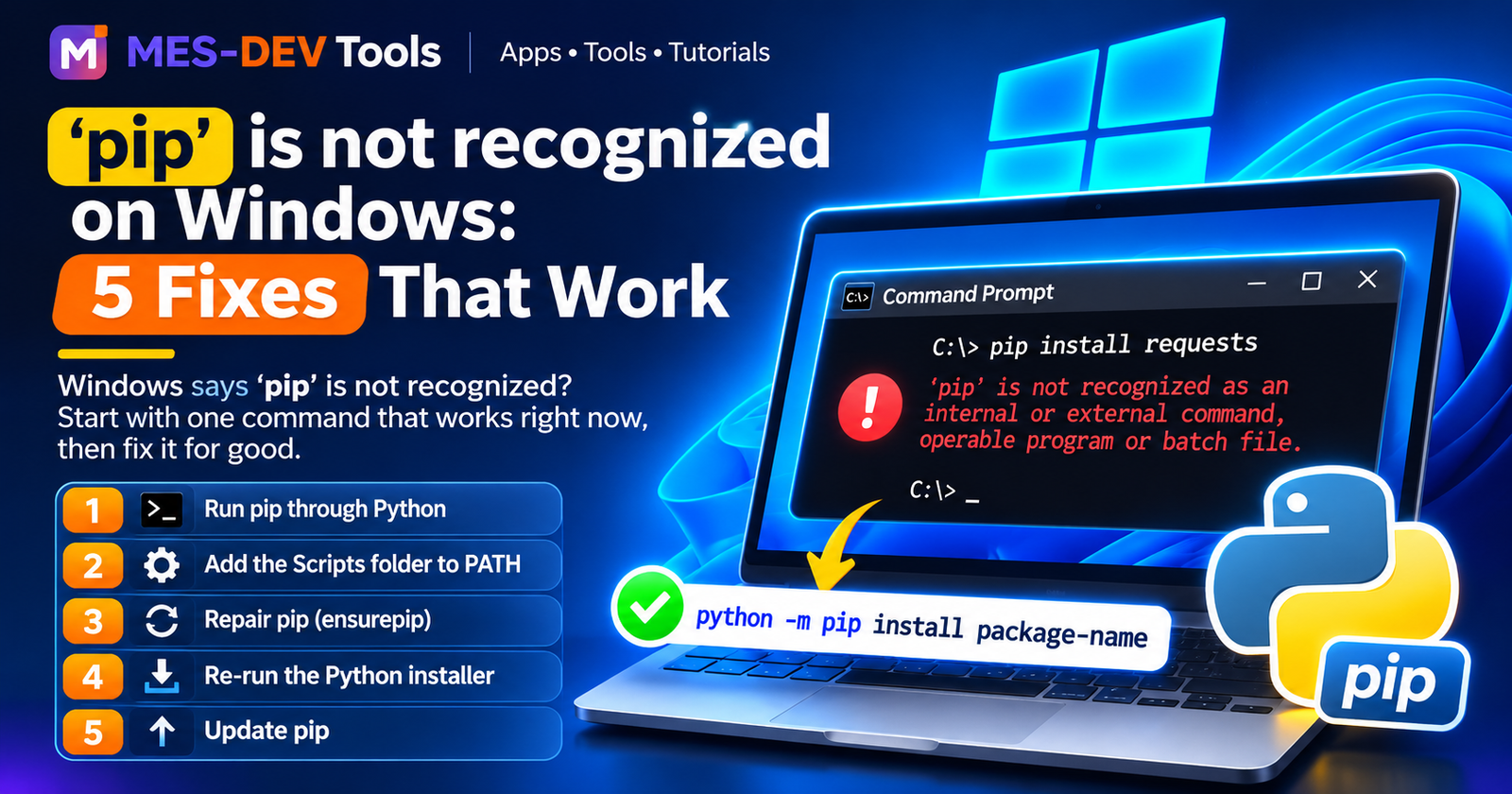
Need to install a package? See fix 'pip' is not recognized.