How to convert M4A to MP3 (free, offline on Windows)
Convert M4A to MP3 for free on Windows — fully offline, with nothing uploaded. A step-by-step guide using AudioForge, plus bitrate tips to keep your audio sounding great.
You recorded a voice memo on your phone, exported an audio file, or pulled a track from iTunes — and it's an M4A. Then you try to use it somewhere (an old media player, a car stereo, an upload form, a podcast host) and it won't play or won't accept it. M4A is a fine format, but MP3 is the one that plays on basically everything, which is why "convert M4A to MP3" is one of the most common things people need to do with an audio file.
The usual route is an online converter — but those upload your audio to a server. For a random sound clip that may be fine, but voice memos, interviews and meeting recordings are often private, and you shouldn't hand them to a website you don't control. On Windows there's a cleaner option: AudioForge converts audio locally, for free — your files never leave your computer. Here's how.
What you'll need
- A Windows PC
- The free AudioForge app (download it here)
- Your M4A file (or AAC, OGG, FLAC, WAV — it converts between all of them)
The converter is completely free. One note on first launch: AudioForge sets up its audio engine once (a quick automatic download), and after that it runs fully offline — no internet, no uploads, ever.
M4A vs MP3 — what you're actually doing
M4A and MP3 are both compressed ("lossy") audio formats, so converting between them is about compatibility, not quality loss — you're repackaging the sound into the format everything understands. The one thing worth getting right is the bitrate (how much data per second of audio); pick a high one and the MP3 will sound indistinguishable from the original. More on that in Step 4.
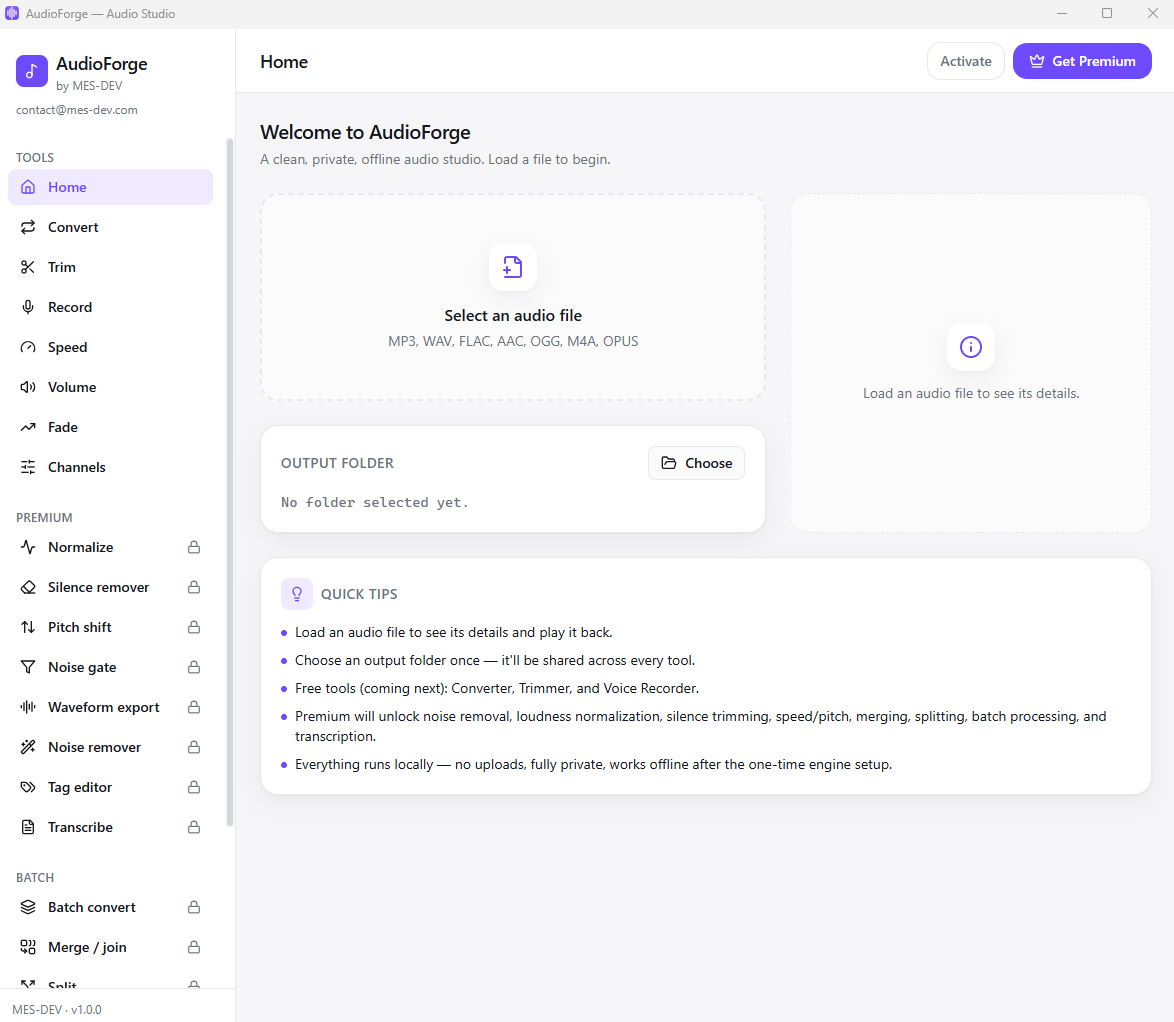
Step 1 — Open AudioForge and pick Converter
Launch the app and choose the Converter tool (it's one of the free tools, alongside Trim, Record, Speed and a few others).
Step 2 — Load your M4A file
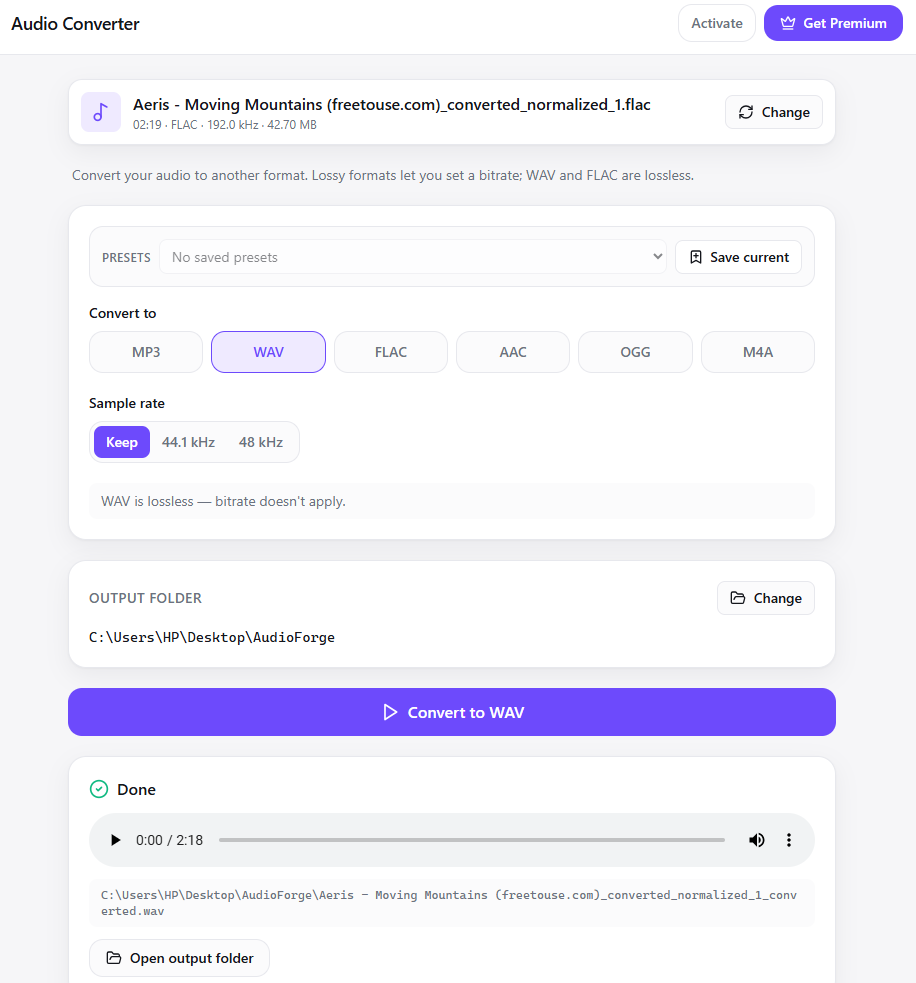
Click to select your file. AudioForge reads it and shows its details — duration, format, sample rate and size — so you can confirm you've got the right one. You can also play it before converting.
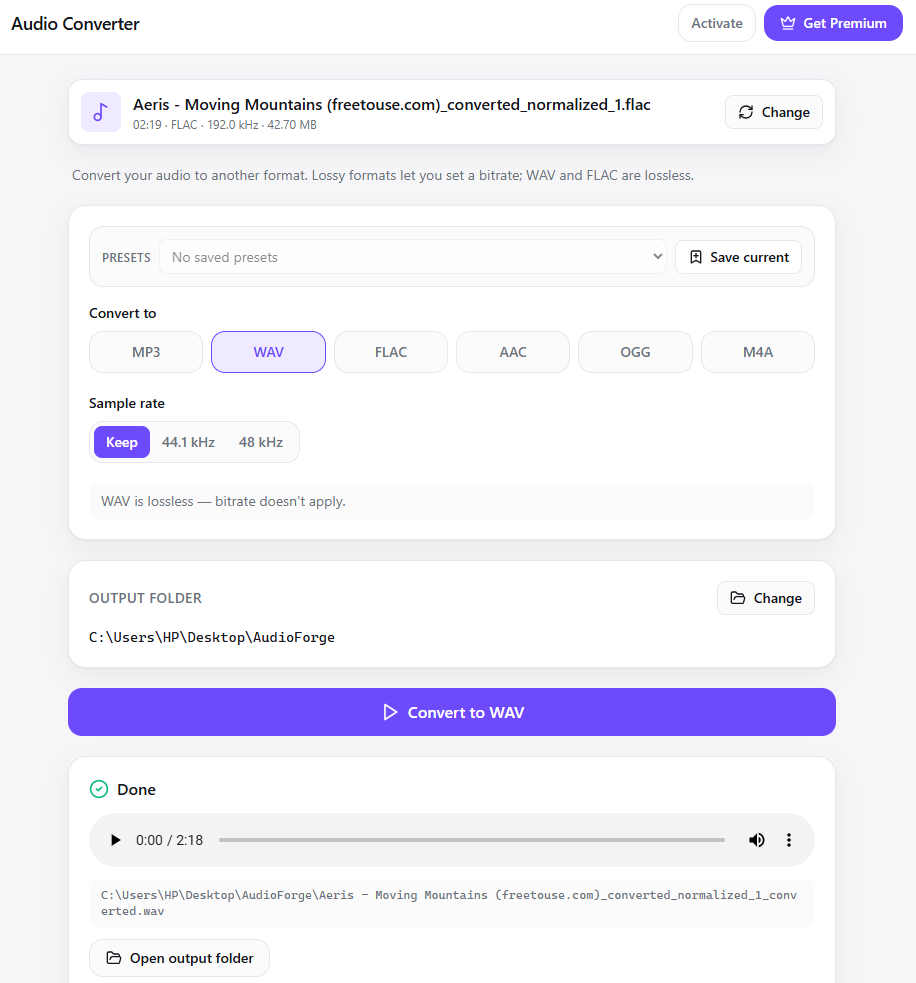
Step 3 — Choose MP3 as the target
Under Convert to, click MP3. (The same screen also converts to WAV, FLAC, AAC, OGG or M4A, so it's the one tool for any audio-format job.)
Step 4 — Pick a bitrate
Because MP3 is a lossy format, you choose a bitrate: 128k, 192k, 256k or 320k.
- 320k — highest quality; best when the audio is music or you want it indistinguishable from the source
- 256k — the default, and an excellent balance of quality and file size for most uses
- 192k / 128k — smaller files, fine for spoken-word like voice memos where size matters more than fidelity
For a voice memo, 192k is plenty; for music or anything you care about, go 256k or 320k. You can also leave Sample rate on Keep to preserve the original.
Step 5 — Choose an output folder and convert
Click Change next to Output folder to pick where the MP3 lands (set once, reused by every tool), then hit Convert to MP3. AudioForge processes the file locally and, when it's done, lets you play the result right there or jump straight to the output folder. Your original M4A is left untouched.
That's the whole free workflow — load, choose MP3, set a bitrate, convert — all on your own machine.
Want lossless instead?
If you're archiving rather than sharing and want zero quality loss, convert to WAV or FLAC instead of MP3 — both are lossless (AudioForge tells you the bitrate option disappears, because it doesn't apply). FLAC keeps full quality at a much smaller size than WAV.
What else AudioForge does for free
Conversion is one of several free tools:
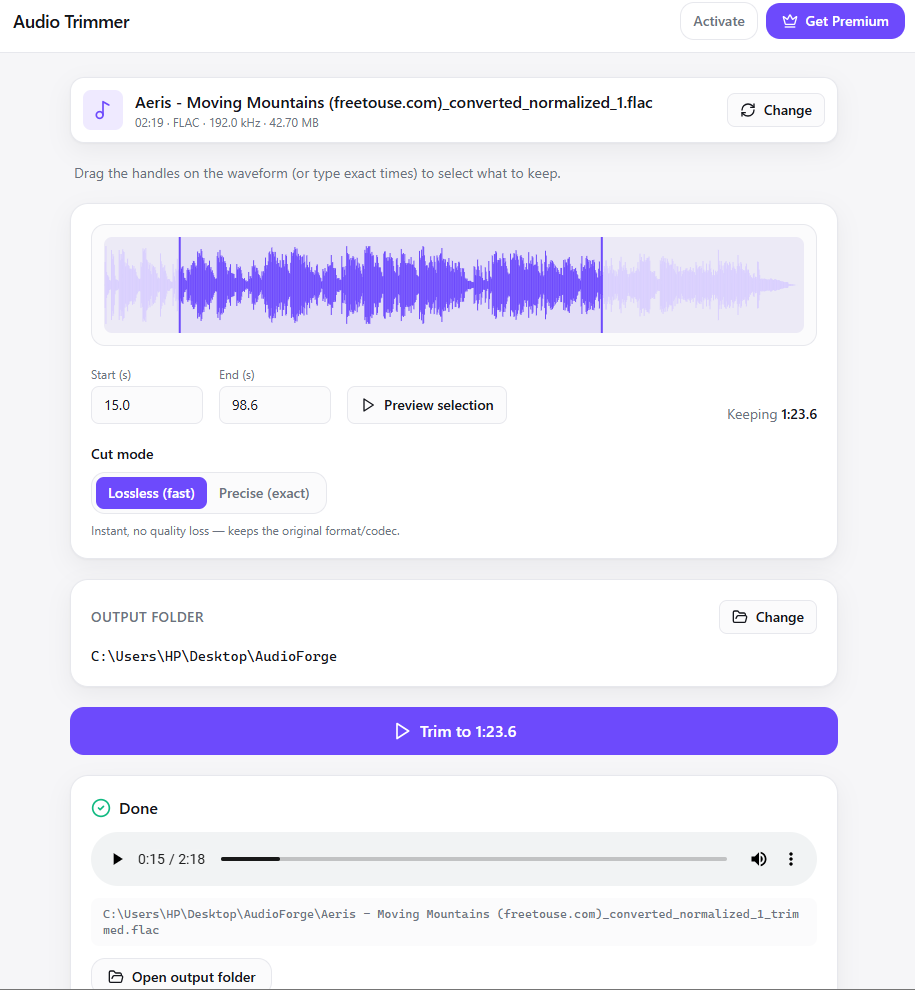
- Trim — cut a clip on a real waveform with draggable handles
- Voice Recorder — record from your mic with a live level meter
- Speed, Volume Boost, Fade and Channel Mixer (stereo↔mono, swap or isolate channels)
Why doing it offline matters
Online audio converters upload your file to a server to process it. For sensitive recordings — voice notes, interviews, client calls, meeting audio — that's exactly what you don't want. Because AudioForge runs the conversion engine directly on your PC:
- Your audio never leaves your computer
- There's no file-size cap, queue or watermark
- It keeps working with no internet connection
Free vs Premium at a glance
| Free | Premium (one-time, $12.99) | |
|---|---|---|
| Convert MP3/WAV/FLAC/AAC/OGG/M4A | ✓ | ✓ |
| Trim, record, speed, volume, fade, channel mixer | ✓ | ✓ |
| Batch convert / merge / split whole folders | — | ✓ |
| AI noise removal & LUFS loudness normalize | — | ✓ |
| Silence remover, pitch shift, noise gate | — | ✓ |
| Local AI transcription (Whisper → TXT/SRT/DOCX) | — | ✓ |
| Waveform export, tag editor, presets & history | — | ✓ |
AudioForge is free to download and use for converting, trimming, recording and the rest of the core tools. Premium is a one-time purchase — no subscription — that unlocks batch processing, AI noise removal, loudness normalization and offline transcription.
Ready to convert?
You can turn that M4A into a universally-playable MP3 in under a minute — free, offline, and without uploading a thing.